3 Personal Space Use Guidelines
If you are new to Matrx, or you have not downloaded Matrx yet, please read [[Welcome to Matrx]]
Getting Started with Your Personal Space
Welcome to Matrx! Once you’re logged in, your Personal Space is ready to go. 💡Tips: Add friends first to start chatting or calling.
- 💻Desktop Users
- 📱Mobile Users
Add a contact
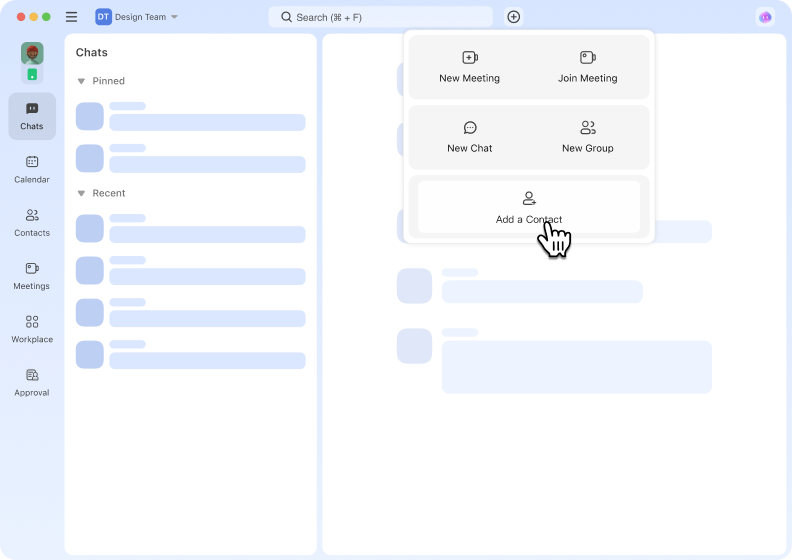
- Click
 , and click Add a Contact in the drop list.
 - Enter their email or phone number , then hit Send Invite
- Once they accept, you’re all set to chat or call!
Start a 1-on-1 Chat
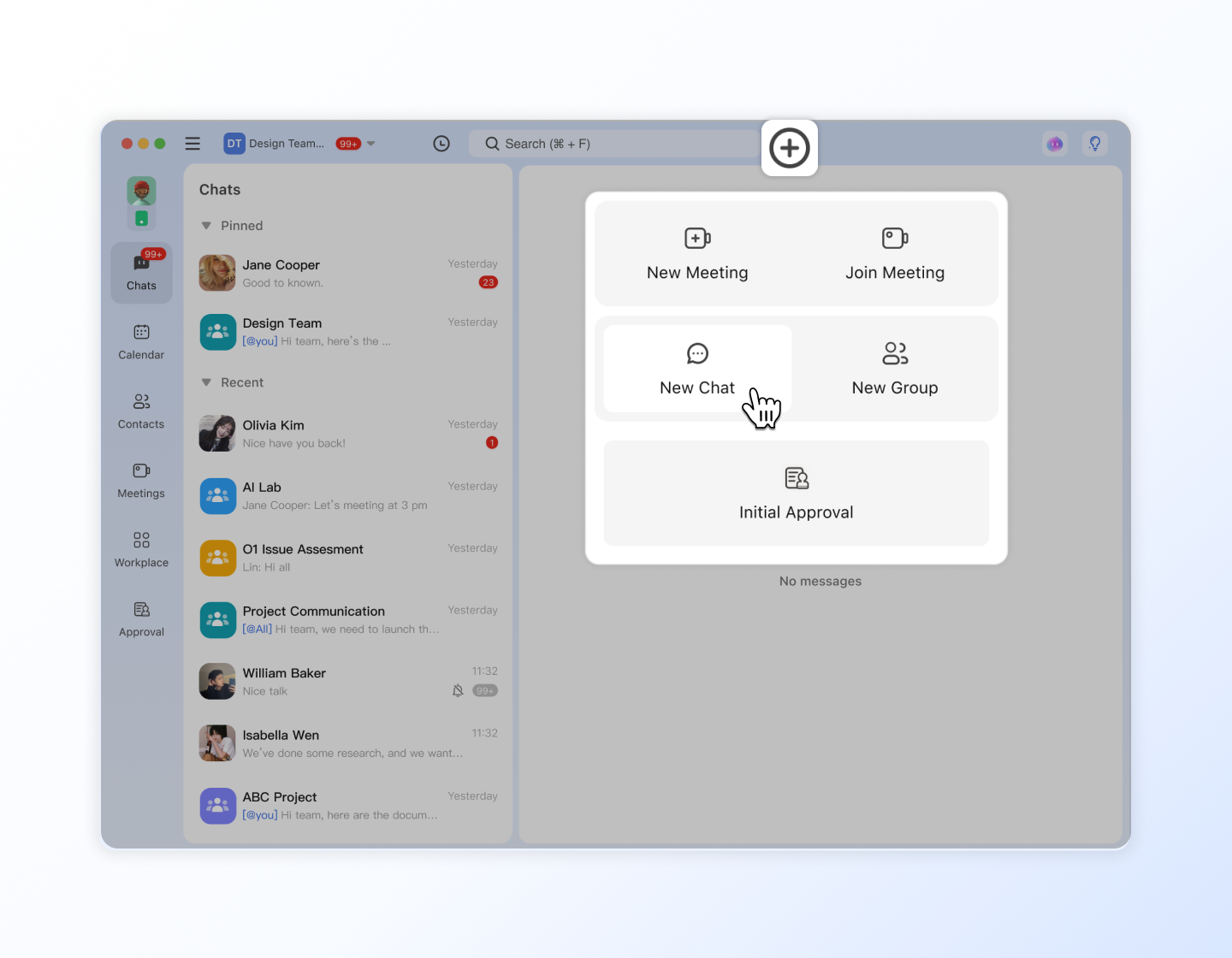
- Tap the + icon (top-right)
- Choose Create New Chat
- Pick a friend → start messaging!
- ✨ Send texts, photos, videos, files, even fancy formatted messages!
Make a Call (2 Ways!)
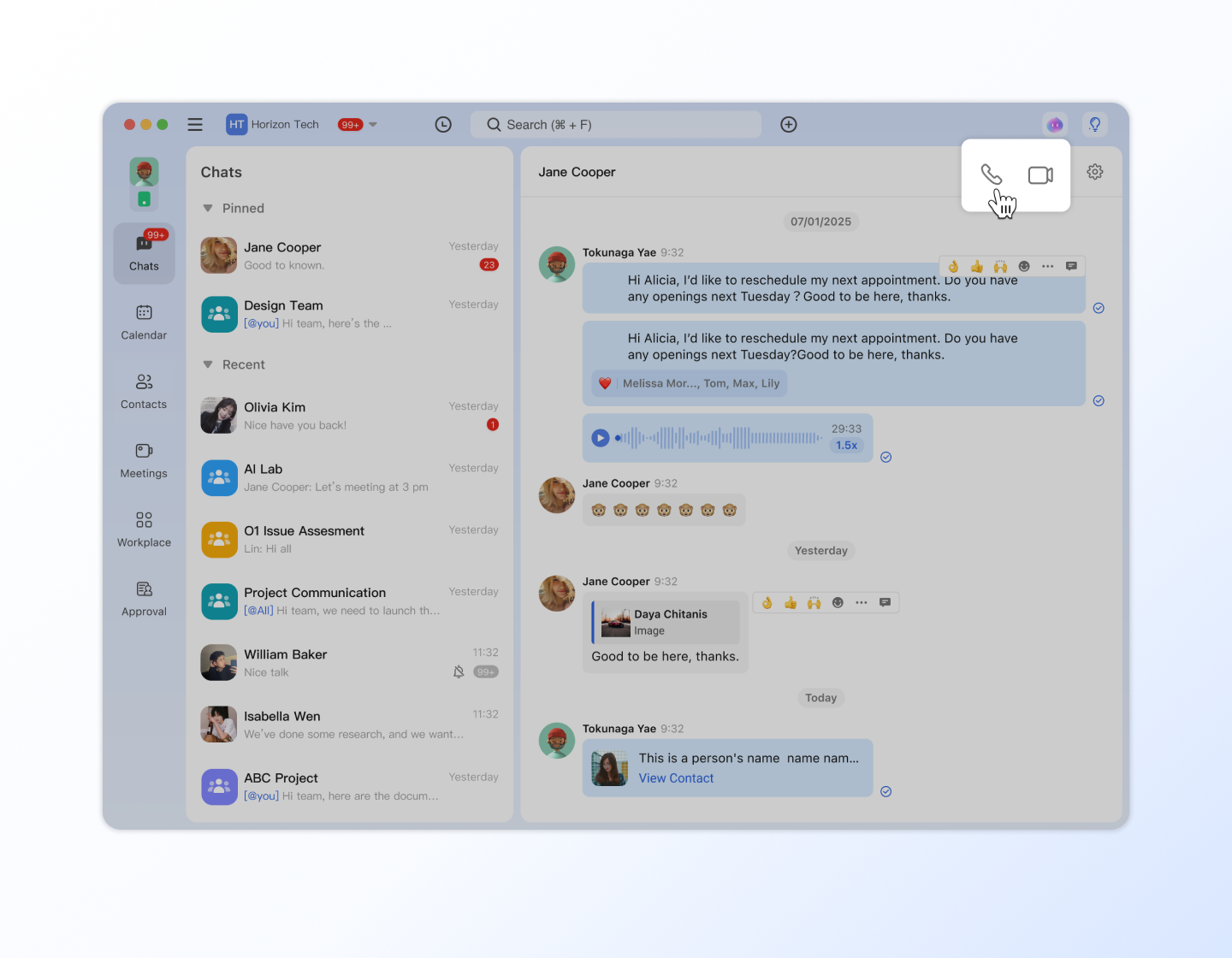
- From a chat: Open the chat → tap the audio or video icon (top-right)
- From contacts: Go to Contacts → select a friend → tap Audio Call or Video Call
Create a Group Chat
Got a topic to discuss with multiple friends?
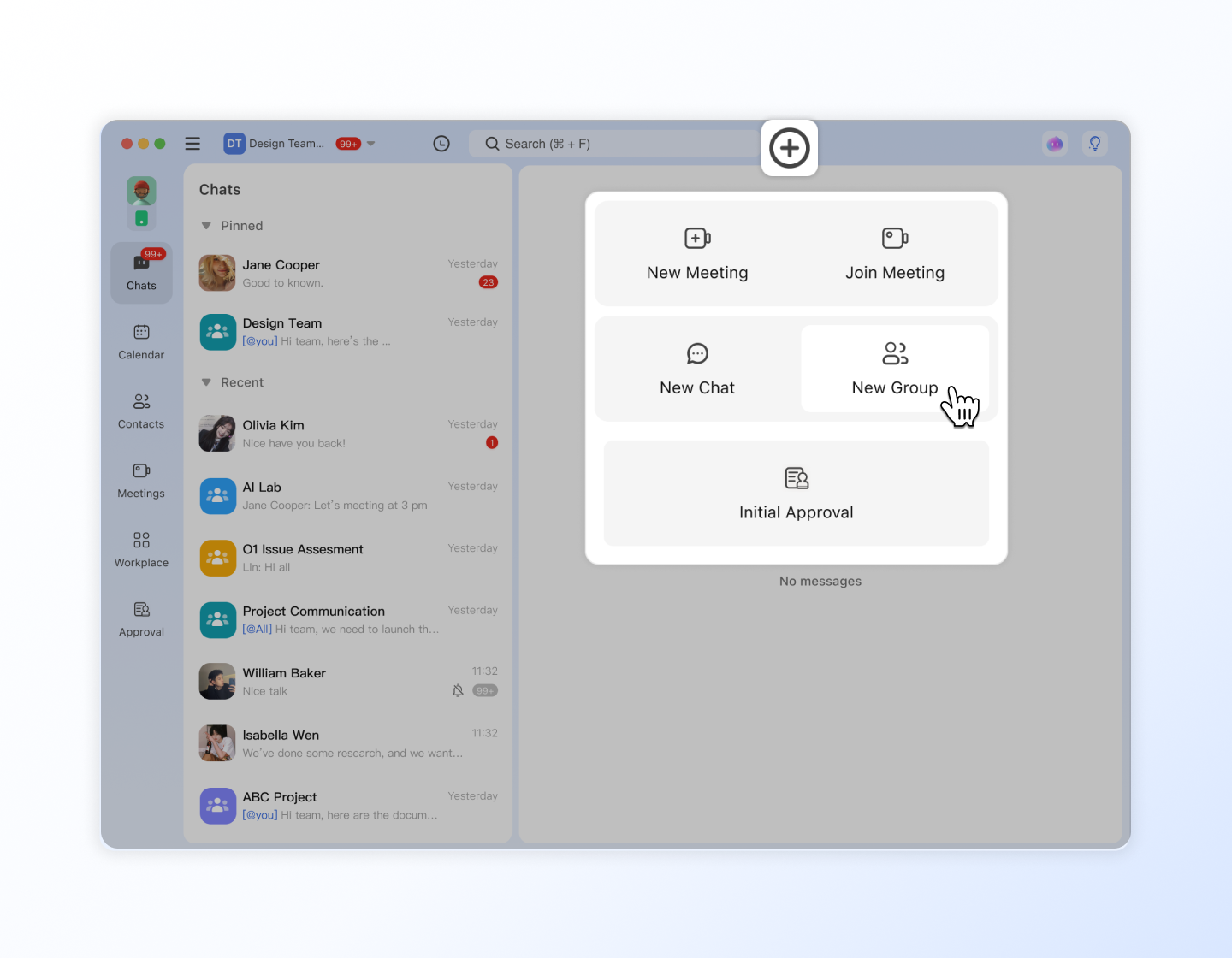
- In Chats , tap the + icon
- Select Create New Group
- Name your group + add members → Boom! Everyone can chat together. Learn more about Chat Features -> [[Overview of Message]]
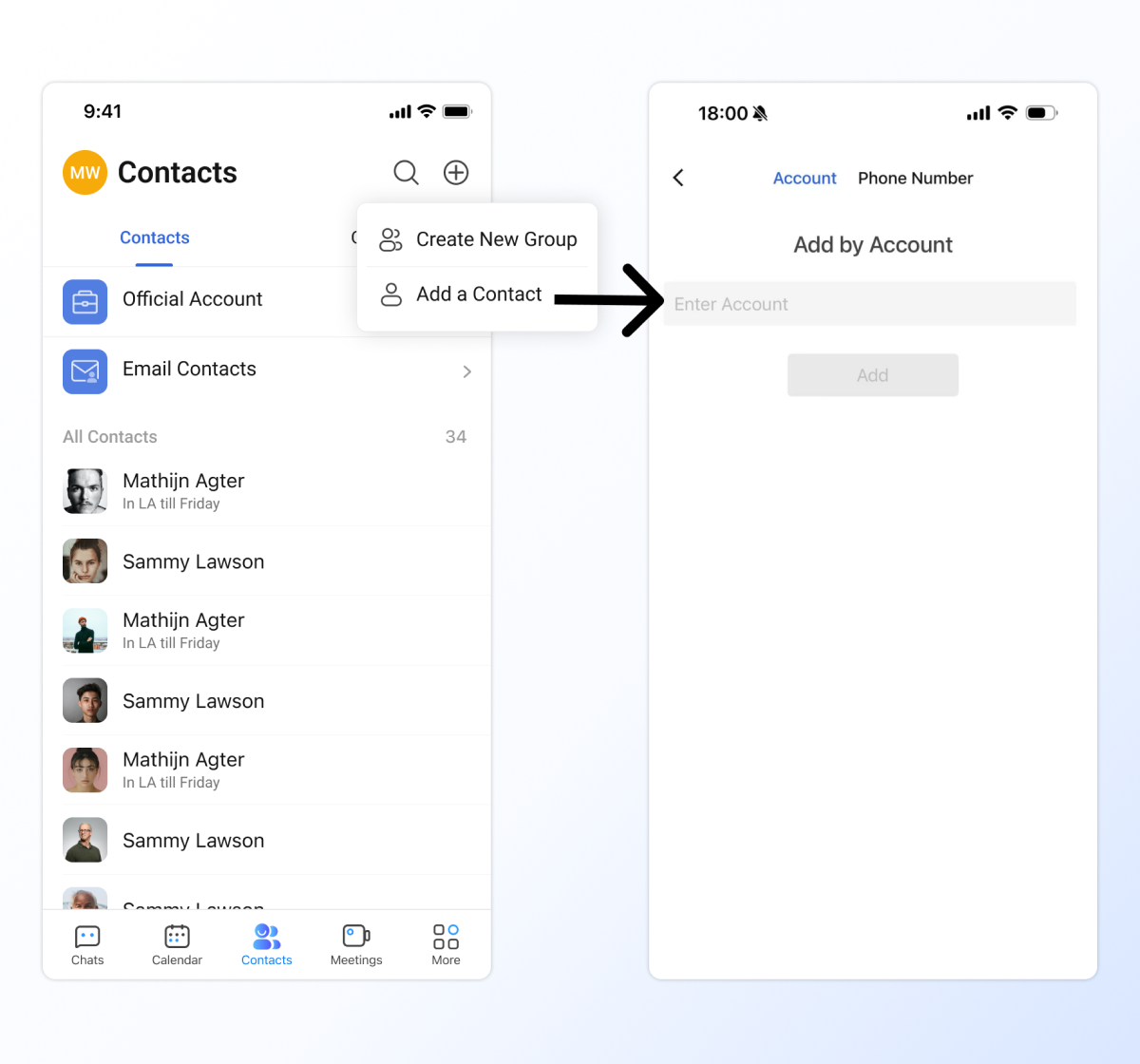
Add a contact
- Go to Contacts → Add Contact
- Enter their email or phone number , then hit Send Invite
- Once they accept, you’re all set to chat or call!
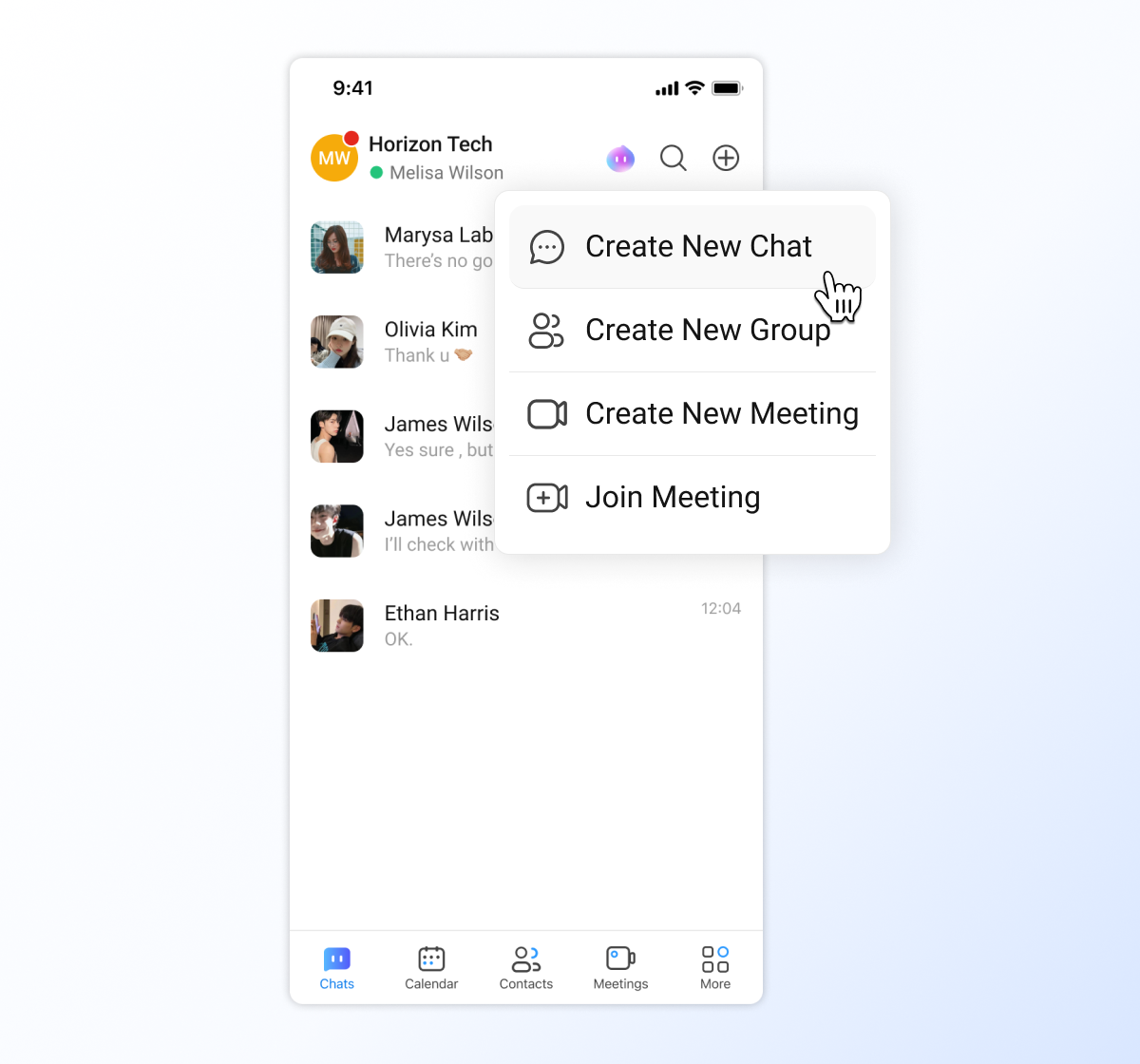
Start a 1-on-1 Chat
- Tap the + icon (top-right)
- Choose Create New Chat
- Pick a friend → start messaging!
- ✨ Send texts, photos, videos, files, even fancy formatted messages!
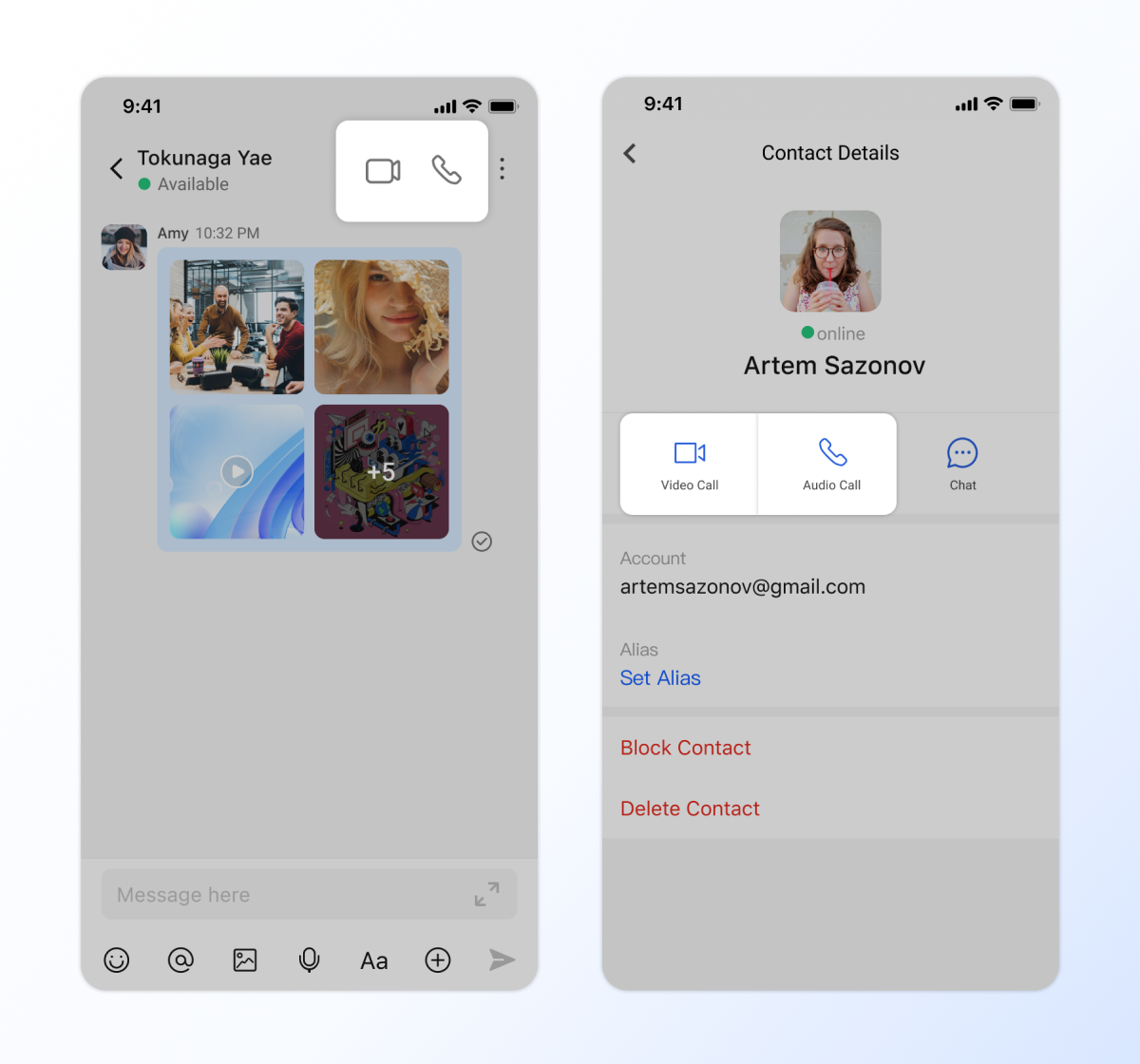
Make a Call (2 Ways!)
- From a chat: Open the chat → tap the audio or video icon (top-right)
- From contacts: Go to Contacts → select a friend → tap Audio Call or Video Call
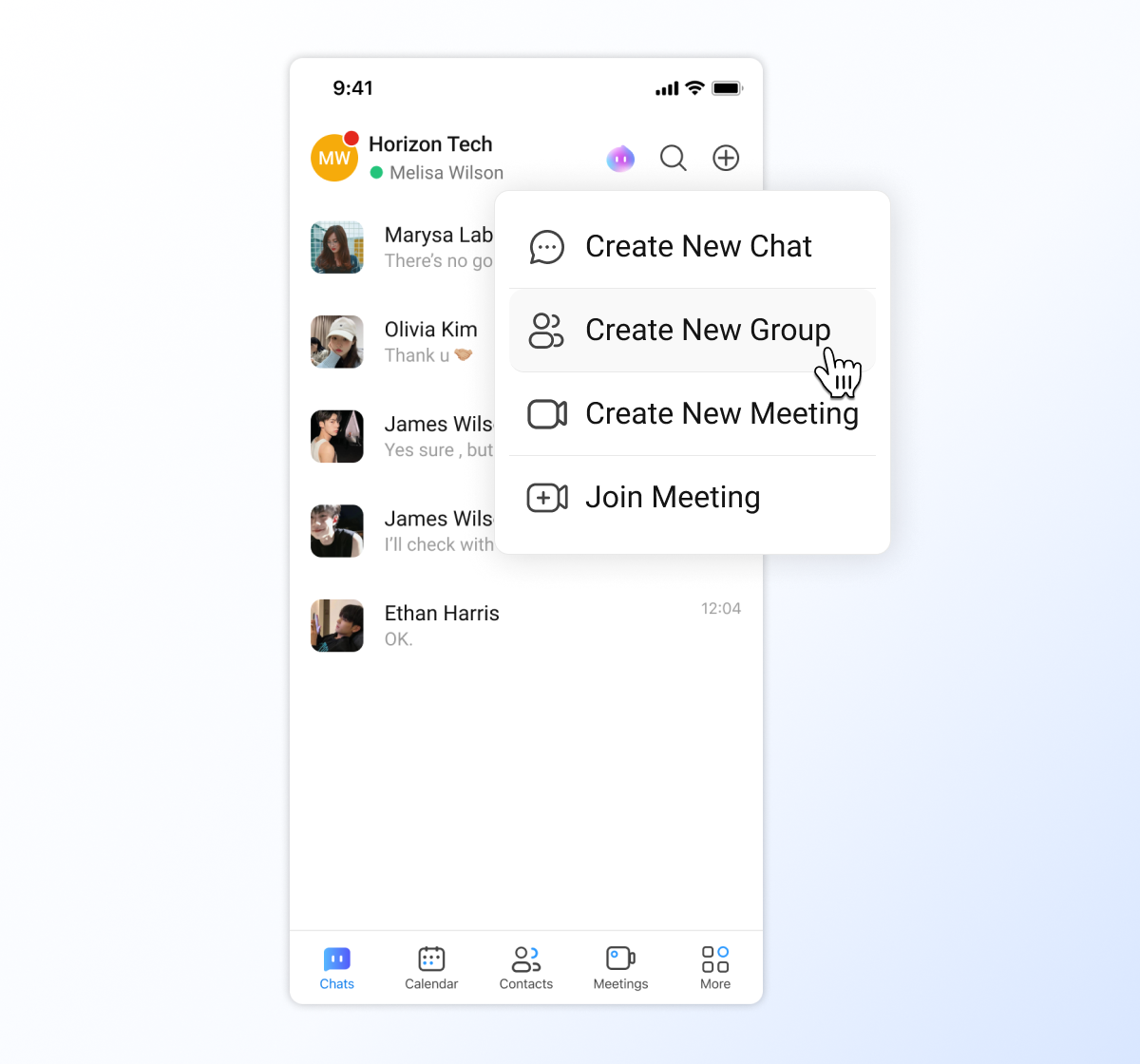
Create a Group Chat
Got a topic to discuss with multiple friends?
- In Chats , tap the + icon
- Select Create New Group
- Name your group + add members → Boom! Everyone can chat together.
Learn more about Chat Features -> [[Overview of Message]]
More Features
- Learn more about Meetings -> [[Quick start video conferencing]]
- Learn more about Calendar -> [[View schedules in Matrx calendar]]
PS: All chats in P Space are E2EE, so you will receive a key update prompt every time you log in again. This is normal.
